Getting Started
Silly Cousins is built around a shared property — the container for everything your family does together around the house. This guide walks you through setting one up from scratch.
Setting up your property
Sign in
Silly Cousins uses magic links — no password to remember. Enter your email on the sign-in screen and we’ll send you a link. Open it on the same device and you’re in.
If you were invited by a co-owner, start from the invitation link in that email — it creates your account and connects you to the property automatically.
Name your property
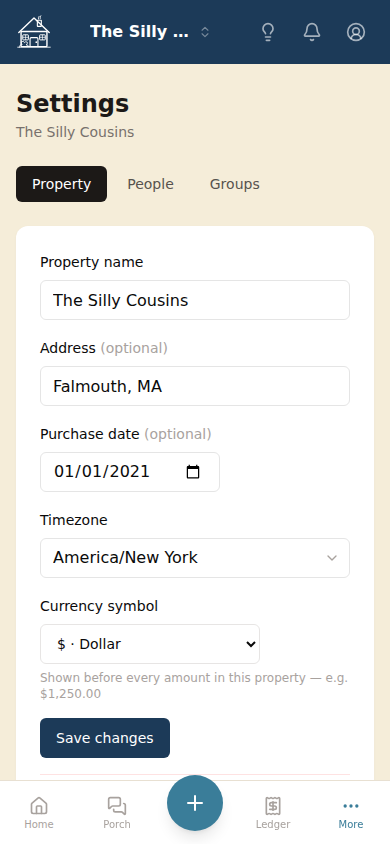
After signing in for the first time, you’ll be prompted to create a property. Give it a name your family will recognize — “The Cape House,” “Lake Place,” whatever you call it. Add the address and timezone if you’d like.
You can update these anytime under Settings → Property.
Adding co-owners
Invite your people
You can add co-owners during the initial setup or anytime afterward from Settings → People. Email addresses are optional at this stage — you can add someone by name only and sort out the invite later.
Once someone is added, there are two ways to get them into the app:
- Copy their invite link — paste it into a text, email, or iMessage and send it yourself. This works even if you haven’t set an email address for them.
- Send an invite email — if you’ve added their email address, Silly Cousins can send the invite directly from the app.
Either way, when they open the link, it creates their account and connects them automatically to their existing record in your property — expenses, balances, and all.
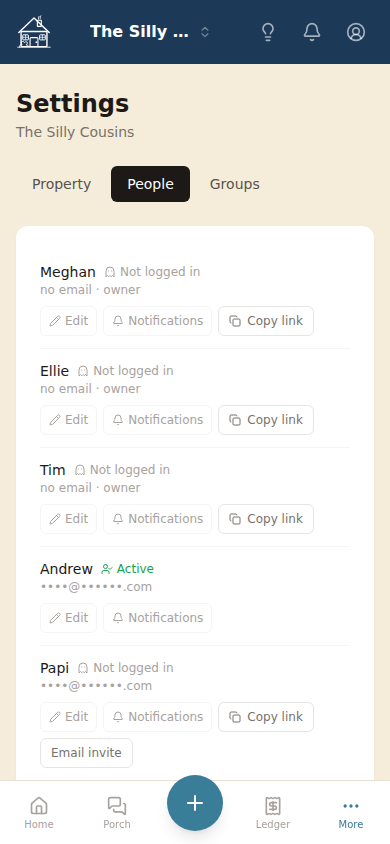
Until someone accepts their invite, they’ll show as a pending member. You can resend or copy the link anytime.
Set up expense splits
By default, expenses are split equally among all members. If your family owns the property in unequal shares — say, two families splitting 60/40 — go to Settings → Groups to configure this.
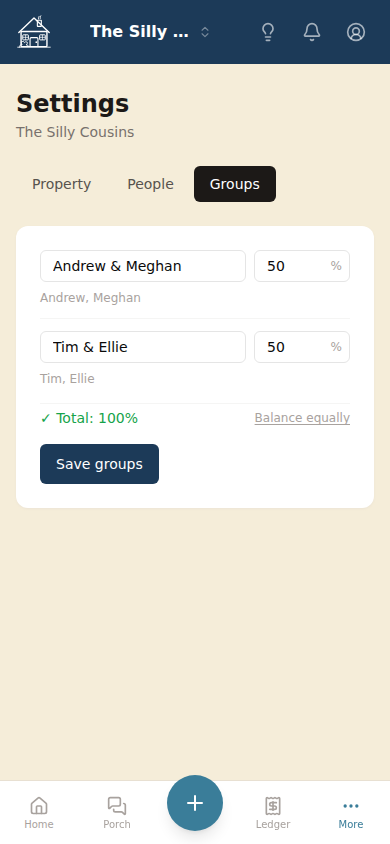
Each row represents a co-ownership group (typically a family or individual). Set the percentage for each group and save. Silly Cousins uses these splits whenever you log a new expense, though you can always override the split on any individual one.
Finding your way around
The Porch
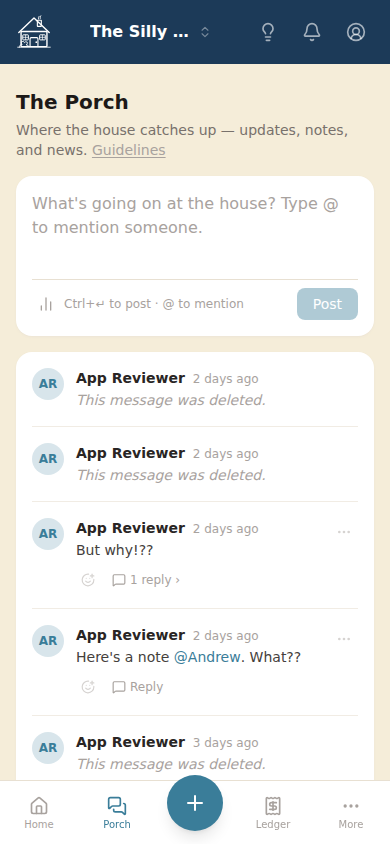
The Porch is the shared house chat — a running log where co-owners can leave notes, ask questions, and keep track of what’s going on at the house. It’s the first thing you see when you open the app.
Use @their name to notify a specific co-owner, or @all to ping everyone.
You can also post a poll directly in The Porch — useful for any decision that benefits from a quick vote. Set up custom options (“Fourth of July,” “Labor Day,” “Neither”) or use the built-in Yes / No / Maybe format. Votes appear in real time with a breakdown of who chose what, and you can close the poll once a decision is made.
Ledger
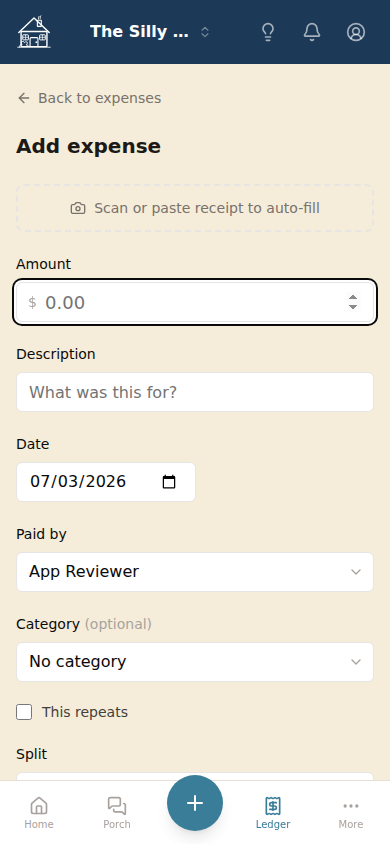
Ledger is where shared expenses live. Tap it to see the full history, or hit the + button to log a new expense. Enter the amount, who paid, and what it was for — Silly Cousins handles the math and keeps a running balance for each co-owner.
You can also snap a photo of a receipt or invoice and Silly Cousins will read it and fill in the details for you. On mobile, tap the camera button in the expense form; on desktop, drag a file onto the form or paste an image directly.
Lists
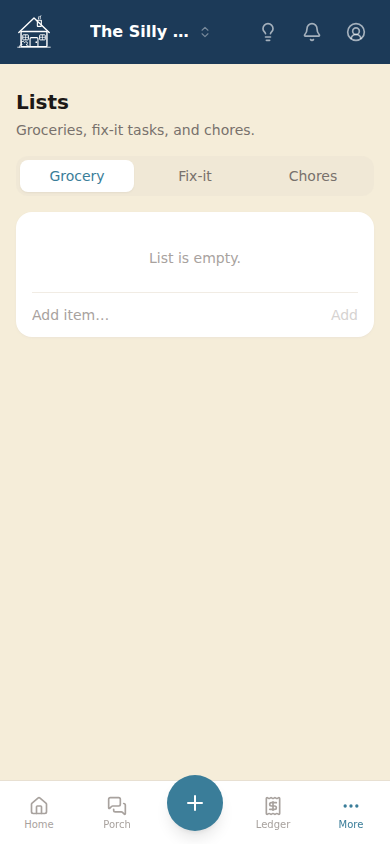
Lists (under the More menu) gives everyone a shared place to track what the house needs. There are three built-in lists:
- Grocery — things to pick up before the next visit
- Fix-it — repairs and maintenance that need attention
- Chores — recurring tasks to keep the place in order
Changes sync immediately, so if your cousin crosses something off the grocery list, you’ll see it right away.
Documents
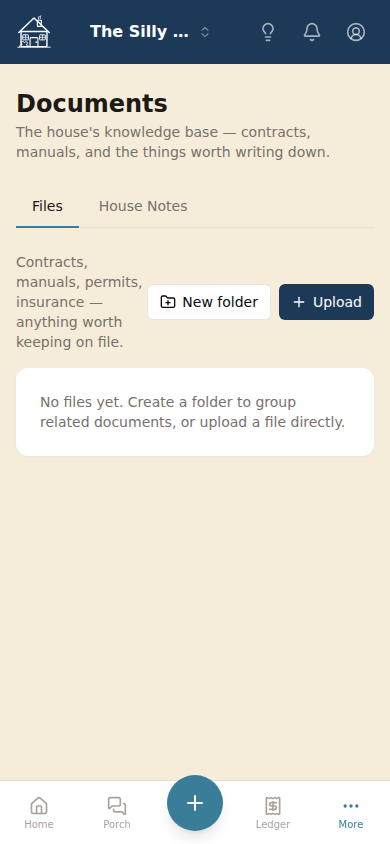
Documents is where the house paperwork lives — insurance policies, inspection reports, contractor quotes, the deed. Upload files or write notes directly in the app. Everything is accessible to all co-owners, so nobody has to email around a PDF when someone needs the insurance policy number.
Ask the house
Tap the Ask button (available from The Porch and other screens) to ask a question about your property in plain language. “How much did we spend on repairs last year?” or “Do we have the well inspection on file?” — Silly Cousins searches your expenses, documents, and more and pulls back a direct answer.
Platforms
Silly Cousins works in any web browser and has a native iOS app. All three options share the same account — sign in once and your property is there on every device.
iOS
Download the app from the App Store. Once installed, sign in with the same email you use on the web. The iOS app supports push notifications so you’ll hear about new expenses, Porch messages, and list updates without having to check.
Android — add to home screen
Silly Cousins doesn’t have a native Android app yet, but the mobile web experience works well and can be pinned to your home screen so it feels like one:
- Open sillycousins.com in Chrome
- Tap the ⋮ menu in the top-right corner
- Tap Add to Home screen
- Give it a name and tap Add
The icon will appear on your home screen and open directly into the app, full-screen.
Web
The full app is available at sillycousins.com in any desktop or mobile browser — no installation required.
Most families are up and running in under ten minutes. If you get stuck, email support@sillycousins.com — we’re happy to help.